If you are looking for a working free fire max lag fix 2gb ram or 3gb ram guide, you already know how frustrating sudden screen freezes are during close-range Clash Squad fights. Because Garena Free Fire MAX includes upgraded textures, dynamic lobby animations, and extra visual effects compared to standard Free Fire, older budget smartphones quickly run out of free memory.
The good news is that you do not need risky third-party “GFX tools” or config files (which can get your account suspended) to play smoothly. By turning off hidden FF MAX visual enhancements, lowering display load, and freeing up system RAM, you can eliminate stuttering on 2GB and 3GB RAM devices.
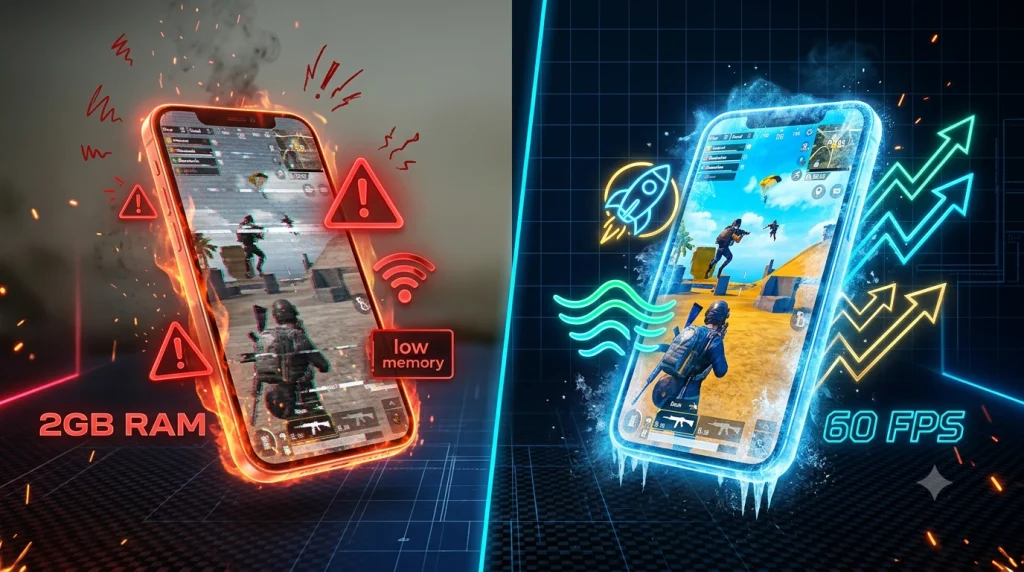
1. Turn Off Extra Visuals in the “FF MAX” Settings Tab
Most players only change their Display tab, forgetting that Free Fire MAX has a separate FF MAX settings menu loaded with heavy animations that drain low-end processors.
Open Settings (Gear Icon) > FF MAX and switch every option to its lightest setting:
| FF MAX Option | Recommended Setting | Why It Stops Lag |
| Login Video | Off | Stops background video playback from eating RAM before you even enter the lobby. |
| Lobby Style | Classic | Replaces the 3D rotating vehicle/character lobby with a static screen. |
| Audio Style | Classic | Uses standard, lightweight gun sound files instead of heavy HD audio effects. |
| Display Teamleader | Off | Prevents squadmates’ high-poly skins and emotes from rendering in the lobby. |
| Animation | Classic | Removes extra running, reloading, and weapon-inspection animations in matches. |
| Visual Effects | Off | Disables extra blood splashes, safe-zone energy beams, and heavy particle effects. |
| HD Texture | Off | Stops the game from loading high-resolution ground and building textures. |
| Vehicle Effects | Off | Removes tire smoke, exhaust flames, and dust trails while driving. |
2. Best Display & Graphics Settings for 2GB and 3GB RAM
Once the FF MAX tab is stripped down, switch to Settings > Display and apply these exact numbers:
- Graphics: Set to Smooth. Never select Standard or Ultra on 2GB/3GB RAM phones, as real-time shadows immediately cause frame drops when multiple squads land nearby.
- High FPS: Set to Normal on 2GB RAM devices. If you have a 3GB RAM phone that does not overheat, you can test High, but drop back to Normal if your screen freezes after 15 minutes.
- Auto Scale / Auto Adjust Graphics: Set to Off so the game does not randomly spike visual settings mid-match.
- Brightness: Keep between 75% and 85% so enemies inside dark buildings remain easy to spot without cranking up screen heat.
(Once your frame rate is stable, copy our best headshot sensitivity for Free Fire MAX to dial in smooth one-tap drags on low-end screens.)
3. Delete Unused Expansion Packs in the Download Center
Every Free Fire MAX update adds gigabytes of optional costume bundles, pet skins, and unused maps. On a 2GB or 3GB RAM phone, keeping unnecessary packs installed slows down storage read speeds and causes lobby stutters.
- Tap the Cloud Download icon at the top of the main lobby screen.
- Delete Costume Expansion Packs, Pet Skins, and Unused Mode Maps (such as old Craftland or Zombie modes).
- Keep only the core Bermuda, Purgatory, Kalahari, and Clash Squad map files, and leave at least 4GB to 6GB of free internal storage on your phone so Android can manage virtual memory smoothly.
4. Quick Android Settings to Free Up RAM Before Playing
Before launching Garena Free Fire MAX from the official Google Play Store app, run this 30-second pre-match routine:
- Clear App Cache (Not Data): Go to Phone Settings > Apps > Free Fire MAX > Storage and tap Clear Cache. (Warning: Never tap “Clear Data,” or you will have to re-download all expansion packs.)
- Force Stop Heavy Background Apps: Swipe away Instagram, YouTube, WhatsApp, and Chrome from your Recent Apps tray so they stop consuming RAM in the background.
- Turn Off Battery Saver & Remove Your Case: Low-power mode throttles your CPU speed, while thick plastic covers trap heat during ranked matches. Also avoid playing while your charger is plugged in.
- Stabilize Your Ping: Sudden teleporting or delayed bullet registration is often network lag rather than low RAM—follow our guide on how to fix high ping and lag in mobile games to keep your connection green.
Frequently Asked Questions (FAQ)
Are GFX Tools or “Lag Fix Config Files” safe for Free Fire MAX?
No. Modifying game files or using third-party injector/GFX apps violates Garena’s Fair Play policy and can lead to a permanent account ban. Stick strictly to the in-game FF MAX and Display settings listed above.
Why does Free Fire MAX lag only when an enemy comes close?
Close-range lag happens when your phone struggles to render enemy outfit skins and gun effects simultaneously. Turning HD Texture and Visual Effects to Off and deleting unused costume packs fixes this stutter.
Which characters work best when playing on a laggy low-end phone?
Passive speed and healing characters like Kelly, Jota, and Hayato activate automatically without extra screen animations—check our best character combinations for Clash Squad for full builds.