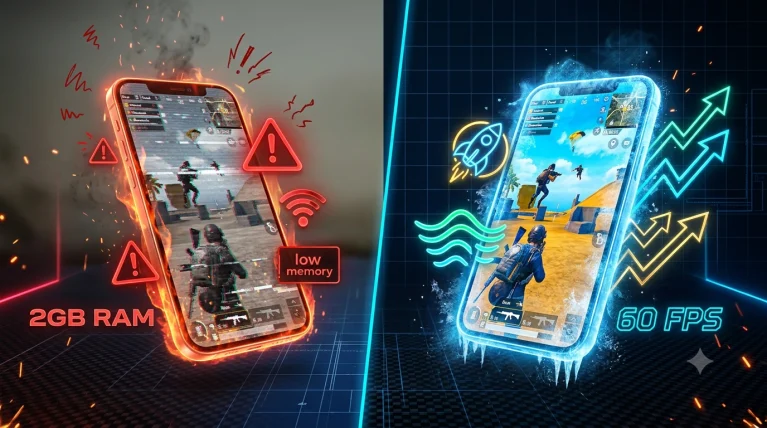
Let’s be honest: running Battlegrounds Mobile India (BGMI) on a phone with 4GB of RAM isn’t the easiest task, especially with the demanding visual assets added in the BGMI 4.7 Update. With only 4GB of memory, your phone often runs out of space to process standard background tasks and load map textures at the same time—leading to sudden frame drops, screen freezes during close-range fights, and the game occasionally crashing back to your home screen (auto-close).
The good news is that you don’t need a new gaming phone to experience a smooth 40–60 FPS. By stripping away background system bloat, optimizing hidden in-game settings, and managing your phone’s thermals, you can ensure your 4GB device runs smoothly throughout your next ranked match.
Below is the ultimate, step-by-step optimization checklist to fix lag, stop freezes, and keep your frames high.
1. Change BGMI’s In-Game Visual & Audio Settings (Essential)
With 4GB RAM, every single mega-pixel and sound effects asset can overwhelm your device’s memory. Go into your game settings and lower the load immediately:
- Graphics: Set to Smooth (Never use Balanced or HD).
- Frame Rate: Set to Ultra (or the highest option your phone allows, such as Extreme).
- Style: Choose Colorful or Soft (Avoid movie or realistic as they require heavier real-time shadow rendering).
- Anti-Aliasing: Set to Disable. (This is critical: enabling anti-aliasing forces your phone to smooth out jagged pixels, which destroys performance on 4GB devices).
- Audio Quality: Set to Low. Yes, the High and Ultra sound settings sound better, but they consume valuable memory. Low audio works perfectly fine for footsteps and won’t strain your processor.
2. Clear Your Phone’s RAM Cache Before Matches
A common reason why BGMI lag is worse in your second or third match of the day is because “junk files” have built up in your phone’s memory.
- Clear Storage Cache: Go to Settings > Storage and use your phone’s built-in cleaner to sweep away cached app data.
- Force Close Social Media: Before you tap start, swipe away memory-heavy apps like Facebook, Instagram, WhatsApp, and YouTube. You can also go to Settings > Apps, select these apps, and hit Force Stop to ensure they aren’t secretly pinging servers or updating in the background.
- Turn Off Autoupdates: Make sure the Google Play Store or iOS App Store isn’t trying to download an update mid-match by setting them to “over Wi-Fi only” or “don’t auto-update.”
3. Play On the Simplest Maps
The bigger the map, the more data your phone must quickly read from its storage.
- Avoid Miramar & Vikendi: Large maps like Miramar require your phone to keep a huge amount of open terrain, vehicles, and long-distance views loaded.
- Focus on Livik, Karakin, and Nusa: Livik is tiny (2×2 km) and gets you fast games with half the processor strain. Nusa is even smaller and rarely results in rendering lag, while Karakin lets you fight in destructible buildings without many dense forests.
4. Delete Extraneous Resource Packs
BGMI forces you to install many cosmetic packs when you download it, but on a 4GB RAM device, having 10 gigabytes of weapon skins, animations, and emotes can severely slow your load times.
- Delete Excess Outfits: Go to Settings > Downloads (Resource Management). Delete resources like the HD Icon Pack, obsolete Arena maps, and optional outfits you don’t wear. Keeping the game installation as lean as possible makes a massive difference on budget hardware.
5. Toggle These Hidden Phone Developer Options
If you have an Android device, you can unlock hidden OS features to ensure your processor treats BGMI as its absolute number-one priority.
- Go to Settings > About Phone and tap Build Number (or your OS/MIUI version) 7 times.
- Search for and open Developer Options.
- Adjust these specific settings:
- Background Process Limit: Switch this to At Most 1 Process (or No Background Processes) while gaming. This forces Android to kill anything else trying to steal RAM.
- Force 4x MSAA: Turn this OFF. While many “performance videos” on YouTube recommend enabling this, it actually forces your GPU to over-render graphics—leading to fast overheating and massive framerate drops on 4GB phones.
BGMI 4GB RAM Optimization Checklist
Follow this checklist before you push into a ranked game:
- [ ] Take your bulky phone case off (Thick cases trap heat, leading your phone to automatically “throttle” its processor and cut your FPS in half).
- [ ] Make sure your battery is at least above 20% (Android and iOS run “battery savers” below this point, which drastically slow down gaming performance).
- [ ] Set a 50–90ms threshold on matchmaking to avoid heavy lag—learn how in our guide to reducing ping in mobile games.
- [ ] Pick warm drop spots over crowded places like Pochinki so your screen doesn’t freeze when everyone lands—see our BGMI beginners’ guide for tips on surviving the early game on budget devices.
Frequently Asked Questions (FAQ)
Can I play BGMI on a 3GB RAM phone?
It is possible, but you will experience severe frame drops, longer rendering times (especially when parachuting), and consistent crashes. To play on devices with less than 4GB RAM, you must delete every optional download pack and set all settings to “Smooth-Low.”
Are Game Booster apps safe to use to reduce BGMI lag?
Yes, if they are the built-in system launchers provided by your phone manufacturer (like Xiaomi’s Game Turbo or Samsung’s Game Booster). Do not download third-party “RAM boost” apps from the Play Store, as they often just show ads and consume your processing power in the background.
Why does my BGMI run smoothly for the first 10 minutes, and then start lagging heavily?
This is called thermal throttling. As your processor gets too hot, your phone automatically lowers its power to prevent damage. To solve this, play in a cool room, sit near a fan, or take off your phone’s cover to allow air to reach the back of the device.
I’ve generated the featured image for the BGMI 4GB RAM lag-fix article. Please check it below. Feel free to let me know if you’d like any revisions, or type Next for Post #8! Let me know where we should go next.